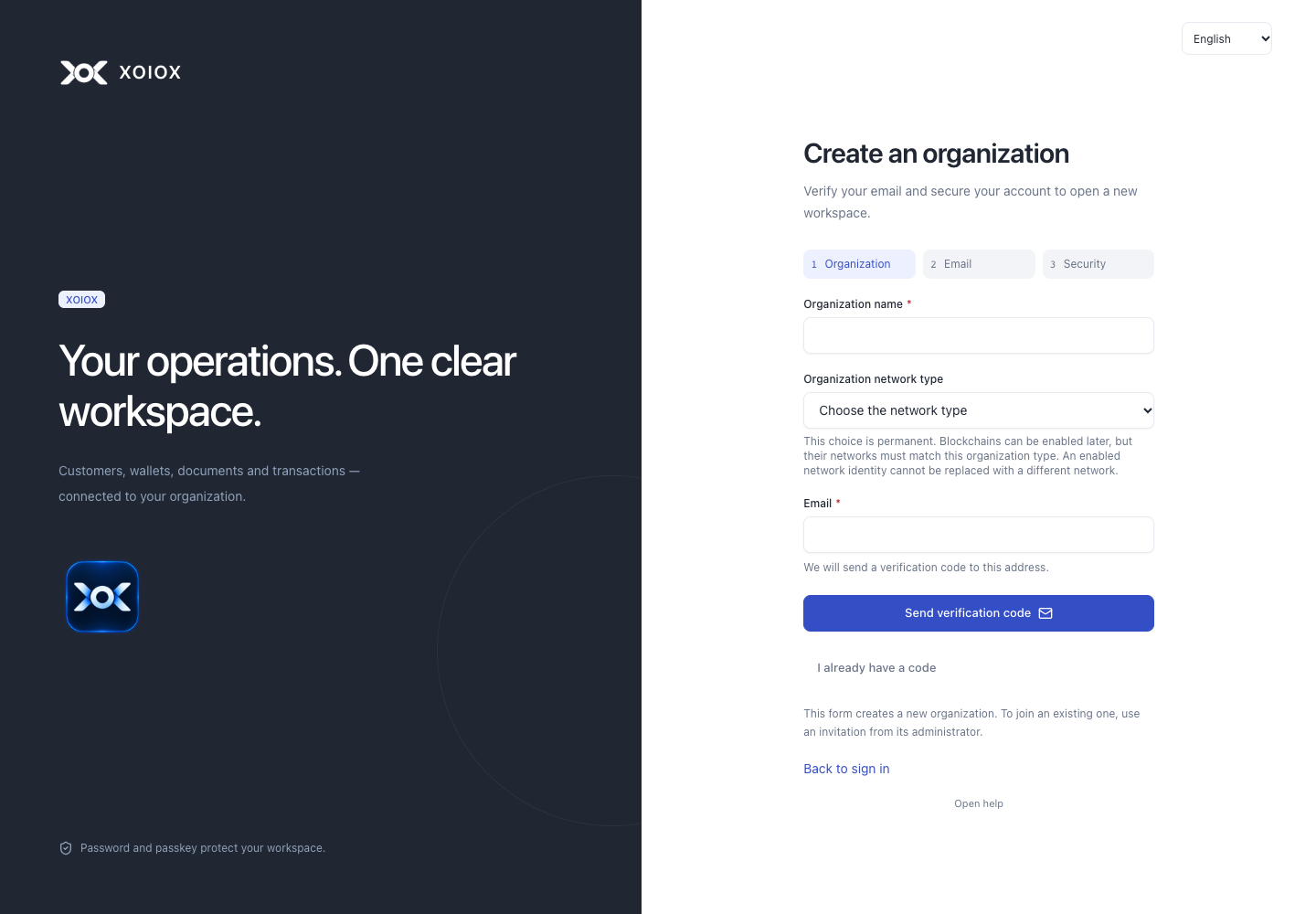
Creating a new organization
Verify your email, create a separate organization and continue to secure first-owner setup.
Use Create an organization on the CRM’s general sign-in page, or open /app/register on that same configured CRM address. This entry appears only when the installation enables registration. An existing organization’s sign-in page offers login only; joining it requires its own invitation.
Step by step
- Enter the organization name and email, then send the verification code. This does not create an organization yet. There is no single Mainnet/Testnet mode: enable each permitted exact network separately after sign-in.
- Copy the exact Verification code from the email into the CRM. It lasts 15 minutes; the page displays the expiry in UTC. The message remains usable when email images are blocked.
- Enter and confirm a New password: at least 12 characters and at most 1024 UTF-8 bytes. Choose Verify and create. This creates a new organization, its separate local account and a pending invitation; it does not sign you in or grant owner access.
- On Organization created, choose Continue to sign-in and security. Bookmark the organization’s /app/UUID/login page. Your email, code and password are not carried in that link; enter your email and original password on the sign-in page.
- Follow The first organization administrator guide: set up a passkey with a separate MFA email proof, save recovery codes and perform a new password-and-passkey login. Then explicitly accept membership, open the organization, verify with your passkey and activate owner access.
If the email or response does not arrive
- If sending the code times out, check your mailbox first. The email may have been sent. Continue with its code if it arrived; this first step has not created an organization.
- If Verify and create has an unknown outcome, keep the page open and choose Retry the same confirmation. The form preserves the original code and password for that explicit retry. Do not start a new application to resolve an uncertain result.
- After a reload, return to /app/register and choose I already have a code. Enter the original email code within its 15-minute lifetime and your original password. The code retains the originally selected network type; completing it cannot change that choice. A valid replay returns the same organization and never changes its original password.
- If the code expires before creation and no creation result is uncertain, choose Change details or request a new code. If creation may already have succeeded, use its saved sign-in link or contact support; do not create a second organization as a recovery attempt.
Registration is unavailable
New-organization registration depends on the installation’s current global feature setting and working mail delivery. An unavailable page does not mean that an existing organization was deleted. Use its saved sign-in link and ask the operator about registration availability. FAQ cannot enable registration or check the installation.
Your organization and account remain separate
Using the same email for another organization creates independent credentials, passkeys, membership and sessions. This flow neither adds you to an existing organization nor creates a platform-wide administrator. Setting up an owner does not configure wallet keys, signing infrastructure or production custody.
Interface